Here's some things you can try to make your streaming stick (a bit) faster.
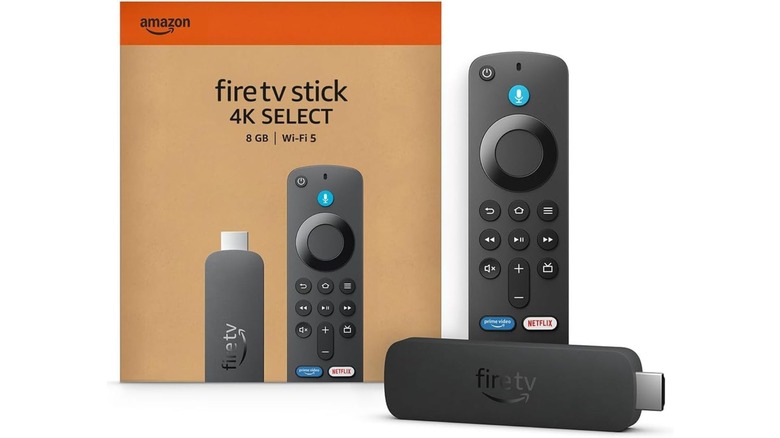
Amazon
We may receive a commission on purchases made from links.
You're sitting on the couch, Fire TV remote and popcorn at the ready, all set to unwind with a favorite show. You press play. And you wait. And wait. And wait...
If you've used a Fire TV Stick for a few years and felt like it's not as zippy as it once was, you're likely correct. It's common for these streaming devices to get slower with time and regular use, and according to multiple reports, a bogged down cache tends to plague Fire TV Sticks. Redditors have noticed that the entry-level (aka cheapest) models tend to have the most bloat, with some speculating it might possibly be due to ads.
Not only are streaming dongles notorious for having little memory, but apps continue to gobble up space with updates and new features or codecs. Older devices, like the first-gen Fire TV Stick, for instance, are simply no longer supported by apps like Netflix, for instance.
The streaming giant notes on its website that it "may no longer be available on some TVs and TV streaming devices made before 2015." On a Help page on a related topic, the company explained "We're always working to provide a consistent, high-quality, and secure Netflix experience. If a device can no longer get necessary updates from its manufacturer or support new features, we may end support for it." The first Fire TV Stick was launched in 2014, seven months after the original Fire TV box.
Between apps growing more data hungry and streaming sticks having limited memory or simply aging out, there are a few reasons why your Fire TV Stick could be slowing down. But the good news is that in most cases, there are a couple of easy solutions to improve performance.
Two quick fixes to try first
The first step just about any time you notice any device slowing down, whether it's a Fire TV Stick or another gadget, is to go for the old chestnut: turn it off and back on again. A quick little reset often will fix any minor hiccups that might be causing a sluggish response. It might also be worth waiting a few seconds after turning it off (count to ten! longer if you have the patience!) before restarting, to make sure to let the power fully discharge. In fact, Amazon recommends you unplug your Fire TV for a full minute before reconnecting it.
The second thing to check if you're having performance problems is to ensure you're running the latest software. You can typically do so by checking in the Settings in the onscreen menu. Many recent models of the Fire TV Sticks have started running Vega OS, an in-house Linux-based system from Amazon rather than the old Fire OS that was based on Google's Android infrastructure. Even if you aren't able to upgrade to Vega OS, keeping up to date with software patches is a good policy for all your gear, that includes what's running on a streaming stick and on your screen if you have a smart TV.
Those with slightly newer Fire TV Sticks (that is, newer than the second-generation or Basic edition) also benefit from Amazon's Auto Offload feature that is on by default and basically, as its name suggests, offloads infrequently used apps. If you haven't launched an app in 60 days, Fire TV Sticks with this feature will uninstall it, but save your login information and settings preferences so they're still there when you redownload it.
You might also consider checking to see if your Fire TV Stick has Featured Content settings enabled and turning them off. In particular, video and audio autoplaying is a headache for many users. Sometimes, especially for a device that's already struggling to operate smoothly, trying to autoplay each title you click through could cause more delays than it's worth.
A surefire solution
The best way to give performance a speed boost is to do the same sort of thing you might routinely do with any other computer: clear out the app data and cache. This is the most likely culprit if you've observed a dip in performance.
On your TV, go to the Settings menu. Once you're there, select Applications, then Manage Installed Applications. You can get a clean slate by picking the option to "Clear all Application Caches." Or, if there's one particular service that's been especially slow to load, you can also pick and choose individual apps to clear from this menu.
It's best if you can do this when you have time and are not in a rush, because once the data is cleared off the dongle, you'll probably have to log back into any services you're using with the Fire TV stick. The process shouldn't take long if you've got all your login info handy, so just give yourself a few minutes to get your viewing setup back in order.
If all else fails...
If clearing your cache didn't work, you might consider a factory reset. Like before, you should set aside some TV-less time for this task, so maybe ready up a book or prepare to cook at the same time. You'll also need to devote some minutes to logging back into your various accounts once your Fire TV Stick is reset. To perform a factory reset, you can pull up Settings from the Fire TV menu, choose My Fire TV and then "Reset to factory defaults." Then, you can either wait a few seconds to let the system reset on its own or cancel the process if you've suddenly regretted your decision (or if it was a mistaken press).
Finally, if a factory reset doesn't work, then it might simply be time to upgrade to a newer model of Fire TV Stick. For most of its current streaming dongles, Amazon is promising to continue software security updates through 2030. The only exception at this time is the first generation Fire TV Stick 4K, which is still good until the end of 2029. But that doesn't mean every model will stay at peak performance until that date.
If your device really can't hack it any more, especially if it's not able to run Vega OS, now would be a good time to make a new purchase. That way you can take advantage of Amazon's entire support window, and possibly improve your picture quality while you're at it.