Here are some things you can try to help your battery out both today and for the long haul.
Devindra Hardawar for Engadget
MacBooks are quite good at managing their own power consumption. But there may be fringe cases where you want to take matters into your own hands. If that's you, here's how to squeeze the most out of your MacBook's battery life.
Battery health and the almighty menu bar shortcut
Apple
Before fiddling with settings, it's a good idea to check the baseline you're working with. Go to System Settings > Battery, and see what it says next to Battery Health. Click the "i" icon next to that to see it as a percentage of its original capacity. If it's 100 percent, then your battery's age isn't affecting its current maximum. (And if it's something like 95 or 90 percent, there isn't yet much to worry about.)
Apple recommends replacing a MacBook's battery if the percentage is below 80 percent. (In fact, you'll see a service warning.) If yours falls that low, then it's time to book a Genius Bar appointment.
To get the most out of the battery in the long run, you can optimize your device's charging. In System Settings > Battery, click the "i" next to Charging, and then choose Optimize Battery Charging. This caps your Mac's charge at 80 percent. That won't change your battery life right now, but it may extend its lifespan.
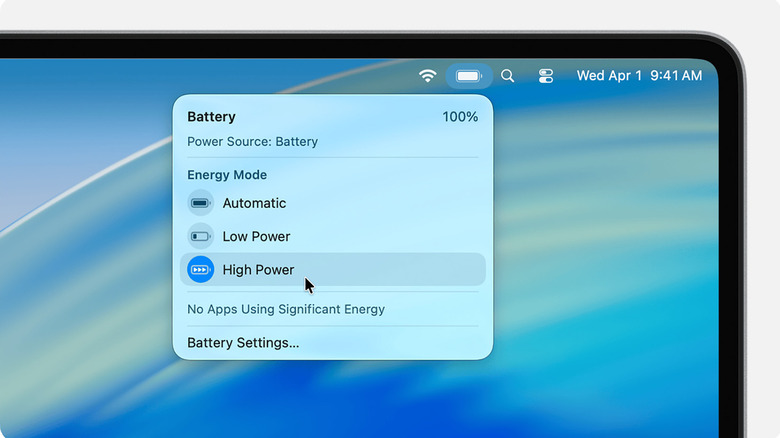
The menu bar's Battery shortcut is an ideal place to monitor things. Clicking on it will reveal not only the battery's charge, but also its current Energy Mode and any apps using a lot of power. This is also a handy place to override the 80 percent cap when you need a full charge — say, before a long flight. And if you don't see the Battery icon, go to System Settings > Menu Bar, and make sure there's a checkmark next to Battery.
Low Power Mode
Apple
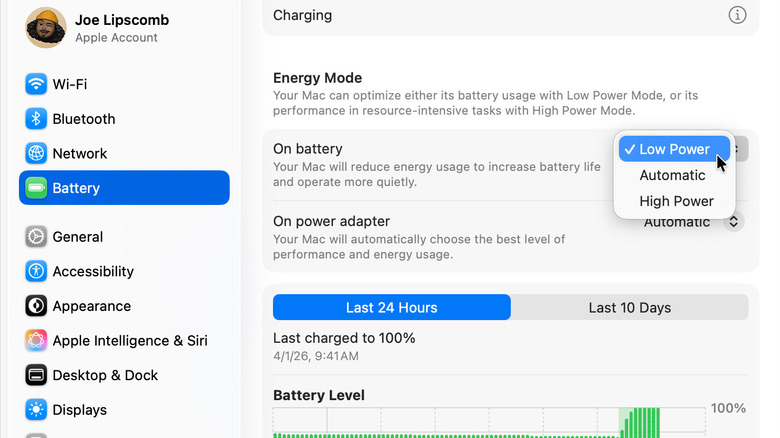
If you had to pick one setting to extend your MacBook's battery life, Apple's Low Power Mode is it. Head to System Settings > Battery, and check the settings under Energy Mode. Chances are, it's already set to Automatic, which is the best option for most people.
If your MacBook has an aged battery — or you just need to stretch things out for a long day — you can switch Energy Mode in the On battery section to Low Power. This leaves it in energy-saving mode even when it has a good charge. And if this setting somehow got changed to High Power on battery, then, well, there's the source of your problem.
Display settings
Screen brightness is another factor. Go to System Settings > Battery > Options, and make sure Slightly dim the display on battery is turned on.
You don't want the screen to stay on for too long when you're not using your MacBook. Go to System Settings > Lock Screen, and set Turn display off on battery when inactive to a relatively short interval, like five or even two minutes. That way, you don't waste power when you step away from the computer.
If your battery often falls short while streaming video, here's a setting could help. Go to Battery > Options, and turn on Optimize video streaming while on battery. This means HDR video will play in SDR while unplugged, reducing energy use. If you're planning to stream something on the go, this could keep your device up and running a bit longer.
Your keyboard's backlight doesn't use much power. Still, this is an area to consider if you want to be stringent. Go to System Settings > Keyboard to lower its brightness. While there, you can also set Turn keyboard backlight off after inactivity to a short interval. But again, don't expect more than minimal savings, if that.
Find infringing apps
There's a long list of third-party software, much of it paid, that calls out battery-draining apps. But Apple's built-in solution is probably all you need.
Open Activity Monitor (it's in Applications > Utilities) and click on the Energy tab. Energy Impact shows the apps that are sucking up the most power right now. Meanwhile, 12 hr Power gives you a longer-term picture. (But again, the Battery menu bar shortcut is a quicker way to view power-hungry apps.)
You can also see which apps fall under Preventing Sleep in Activity Monitor to see if any are keeping your Mac awake.
While you're hunting down power-greedy apps, you can check if any shouldn't be running in the first place. Go to System Settings > General > Login Items & Extensions, and look at the list under App Background Activity. First, a word of warning: Many apps have background processes that are essential to their functionality. Occasionally, their entries in this list won't match the app's name. Shutting things down indiscriminately could break apps you use. But if you want to do a deep audit of battery drain, do some digging and see if anything truly doesn't belong there.
Browser drain
Screenshot by Will Shanklin for Engadget
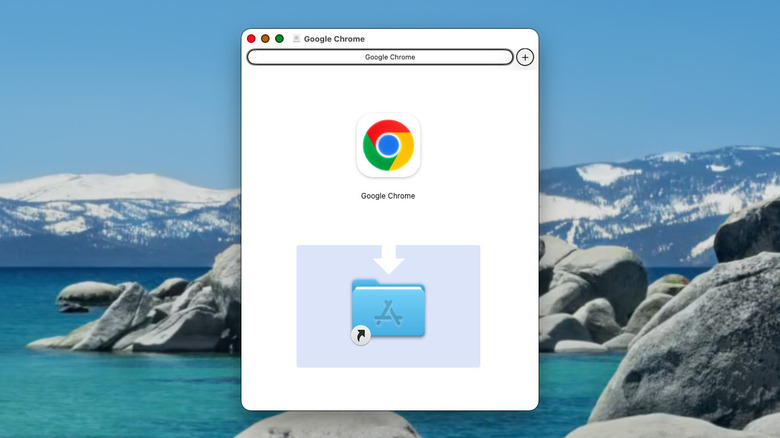
Web browsers can be a major battery drain — particularly Chrome. If using Safari fits your workflow, consider using it as it tends to be more power-efficient. But no matter which you use, here are a few settings you can tweak to save power.
In Safari, you can prevent websites from automatically starting videos. Under the browser's Settings, go to Websites > Auto-Play, and choose individual websites to Never Auto-Play. You can make it a blanket setting under When visiting other websites. (Bonus: turning off auto-playing videos could also lower your irritation levels.)
If you're a Chrome user, open Settings > Performance and turn on Energy Saver. This reduces background processes and limits visual effects that could drain power. While you're there, you can make sure Preload pages is turned off, as that could waste battery by loading pages you may never visit.
If you want to take this even further, macOS has a setting that automatically turns off auto-play for all animated images. Go to System Settings > Accessibility > Motion, and turn off Auto-play animated images. This prevents GIFs and other animations from playing automatically in apps. But don't worry about this unless you're a battery-saving extremist.
Reduce background checks
Another area to check is System Settings > Battery > Options > Wake for network access. Make sure it's set to Only on Power Adapter to prevent your Mac from waking to receive network updates (like Messages and iCloud updates) while unplugged.
It also can't hurt to check which apps have location permission, another source of power draw. Go to System Settings > Privacy & Security > Location Services, and do a quick audit. Just know that you don't want to turn off apps like Find My, Weather or (possibly) your web browser.
Will any of these tweaks double your battery life? Not likely. Again, the macOS default settings are all that most people need. But sensible settings like Low Power Mode, dimming the display, and turning off unnecessary background activity can add up if you're looking to squeeze out the most uptime.