You don't have to live like this.
Adnan Ahmed for Engadget
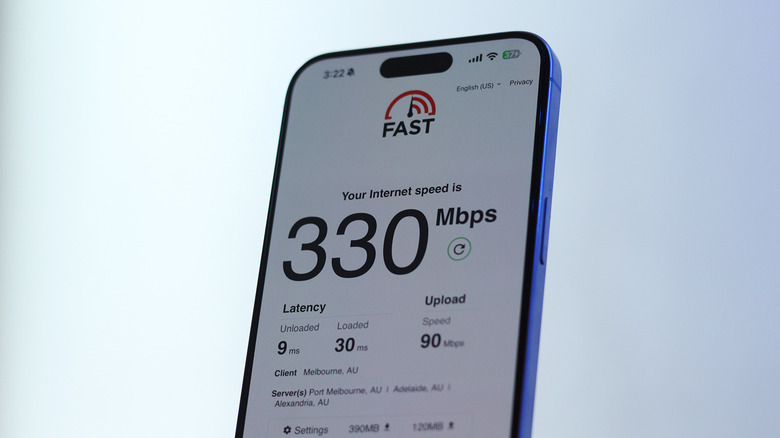
There are few things more infuriating than a video buffering, a game lagging or a file downloading slower than you had hoped it would. Of course, the first thing to check for is your internet speed. If you are receiving upload and download speeds close to what your internet service provider has advertised, your connection isn't the bottleneck. In fact, statistics from the Speedtest Global Index show that the median broadband speed in the United States is over 300 Mbps — that's more bandwidth than most streaming services demand and is even quite fast for downloading large files.
Your internet connection and speed are also heavily influenced by your router. If your device is receiving a poor Wi-Fi signal or keeps dropping the connection, consider moving your Wi-Fi router to a more central location in your home. If it has external antennas, try spacing them out and pointing them in different directions to improve coverage throughout your house. Avoid placing your router near other electronic devices or appliances like microwaves that can weaken the wireless signal.
For those with particularly fast broadband speeds who are only seeing a fraction of the performance in real-world downloads, it's worth checking which Wi-Fi band your device is connected to. Some Wi-Fi routers broadcast a separate 5GHz network that provides significantly better speeds than the 2.4GHz band. If your device isn't connected to it, it will only be able to take advantage of the slower 2.4GHz connection, which typically offers download speeds up to 100 Mbps — a far cry from the gigabit speeds that a 5GHz network unlocks.
Enable SQM if it's available
Adnan Ahmed for Engadget
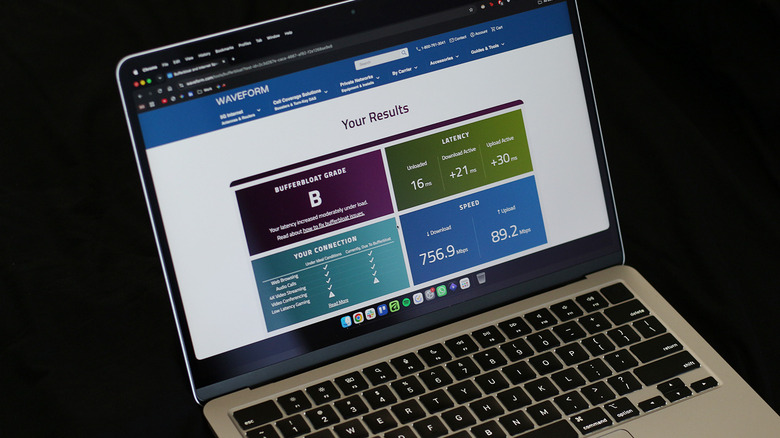
Sometimes you may only experience slower internet speeds when someone else in the house starts downloading a large file or watching a 4K video. If this sounds like something you've complained about before, your router may be dealing with a problem called bufferbloat. Your router sends and receives data in the form of small packets, which it queues before sending them over your internet connection. These queues can sometimes grow very large, especially when multiple devices on a network are downloading or uploading large amounts of data at the same time. Although your bandwidth may be sufficient to handle the workload, it is the queue that introduces delays.
This often materializes as buffering while streaming videos, higher ping in online games or simply a sluggish experience when browsing the web. You can check if this is a bottleneck your router is experiencing by using Waveform's bufferbloat test online. If it reports significant spikes in your latency under load, bufferbloat is likely affecting your network performance. Modern routers may ship with Smart Queue Management, or SQM, for short. It is a feature designed to better manage your router's packet queues, ensuring a single device doesn't monopolize the entire internet connection.
Log in to your router's web interface or look in its companion app if you have it installed on your phone. The feature may be labeled differently depending on your router's manufacturer, but it's usually found under Quality of Service (QoS) or a similarly named menu. SQM is an advanced form of QoS that handles things intelligently, helping keep latency low even when multiple devices are heavily using your internet connection.
Other troubleshooting steps for your router

Liudmila Chernetska/Getty Images
A Wi-Fi router isn't something you need to upgrade very often, but if yours is trailing a few generations behind, it might be why your download speeds aren't up to the mark. Wi-Fi standards may not be an easy concept to grasp, but each new generation generally offers faster speeds, improved range, lower latency or smarter features that improve overall performance. Before you shell out for a brand-new router, it's worth going through a few maintenance steps with your current one first.
Start by performing a power cycle. Routers are meant to run continuously, but like any other electronic device, they are susceptible to slowing down over time. A quick system restart helps clear temporary glitches and refresh the router's memory. Turn off your router and unplug it from the power source. Wait around 30 seconds before plugging it back in.
If you have your router's companion app installed, check whether any pending firmware updates are available. Any known bugs that may have been causing performance issues are likely to be ironed out by the manufacturer in newer firmware releases. Keeping your networking devices up to date in addition to your computer and smartphone ensures they have the latest security patches to protect against known vulnerabilities.
As a last resort, you can fully reset your Wi-Fi router. This may resolve persistent issues or misconfigured settings that may have been affecting your network's performance. This action will, however, require you to set up a network name, password and other settings again.