You're not limited to the faces in the Play Store.
Max Miller for Engadget
There's a trade-off built into nearly every tech product by default — one that shapes opinions of the product and either pumps or prohibits its market share: functionality vs. user-friendliness. There were, for instance, many digital music players prior to the iPod, but only Apple's device managed to simplify the experience into a single control wheel. Combined with iTunes, which allowed users to simply plug in and sync rather than messing with folder hierarchies. The iPod was destined to be a household name, thanks to its basic functionality but high user-friendliness.
One exception to this universal fundamental is Samsung. Despite being the second largest smartphone vendor on the planet, the company manages to pack more enthusiast functionality into its products than just about any other brand. How does it do so without pushing casual users away? By cleverly siloing those more niche features from the rest of the product. If you want to get deep in the weeds customizing your Samsung Galaxy phone, you'll need to download the Good Lock and Good Guardians suites from the Galaxy Store as discrete apps. Casual users need never leave the soothing embrace of default settings, but adventurous users can get messy.
Samsung has increasingly taken the same tack with the Galaxy Watch line. It most recently culminated in the Galaxy Watch8, which made an honorable mention on our list of the best smartwatches for 2026. Users looking to customize their timepiece have plenty of options right out of the box with premade watch faces from the Play Store or Galaxy Wearable app. But for those who want as personal an experience as possible, there's an app for that. Samsung Developer offers a tool called Watch Face Studio. Available for Windows and macOS, it gives you the resources to build any face you can imagine for Wear OS-powered Galaxy Watches.
How to customize your own Galaxy Watch face
Max Miller for Engadget
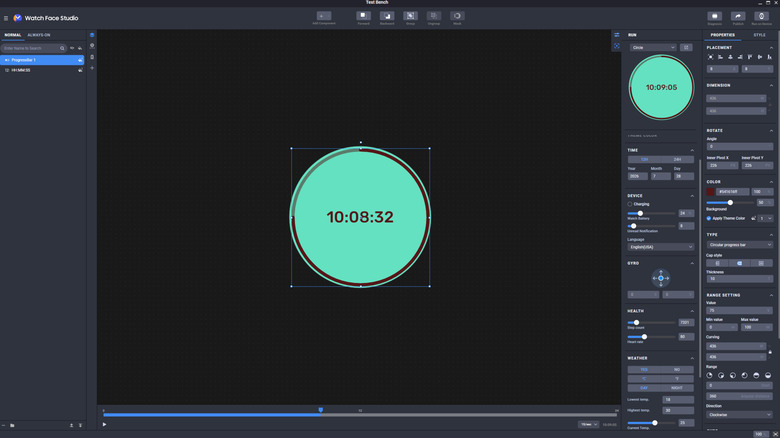
After downloading the installer for Samsung Watch Face Studio from the Samsung Developer website, you'll install it like any other computer program. Click through the prompts until installation is complete, and you'll be able to get started right away. The app will prompt you with some setup questions at first launch, but the default options are fine.
Once inside, you'll find the app to be far more feature-dense than you might have assumed. It's a fully featured graphic authoring tool that simply happens to be geared around creating smartwatch faces. You can add clocks, graphs, progress bars, and more, configuring them to different system or app functions such as displaying step counts, battery life, timer countdowns and so on. Edit the background or replace it with a photo, put in an animation or GIF or just sprinkle some line icons in for flair. You can make the watch face as complex or minimal as you'd like, and you can adjust both how it will look normally and on the Always On Display (AOD).
Samsung may make Watch Face Studio available to consumers, but website copy suggests Samsung hopes it will be used by companies to design branded watch faces for customers, or by designers who want to put their watch faces up for sale. But for the dedicated consumer with a particular vision in mind for their watch and a love for tinkering with tech, it's a blast to play around with.
One thing to keep in mind while designing your watch face is how resource-intensive it will be. A minimal setup with just a clock is likely to extend your watch's battery life, while a highly animated face packed with real-time information will drain it more quickly.
How to install your custom watch faces
Max Miller for Engadget
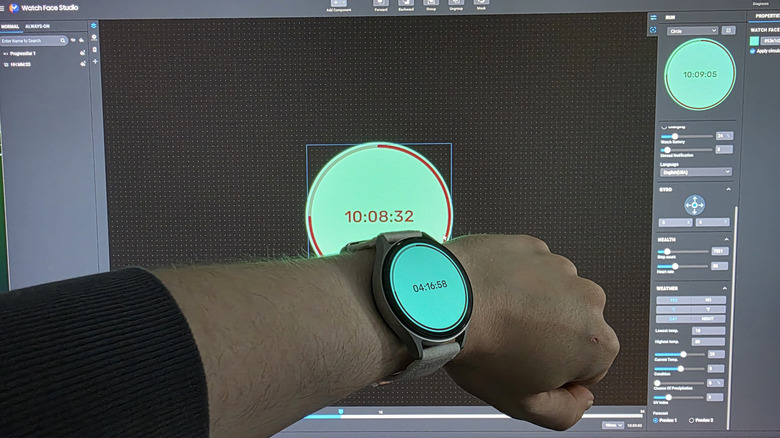
Once you've created the watch face of your dreams in Samsung Watch Face Studio, you can publish it to the store or send it directly to your own watch. If you're trying to publish your watch faces, refer back to Samsung's documentation. As for pushing it to your own watch, you'll first need to set up wireless debugging. Doing so will allow remote control of your Galaxy Watch, so make sure both the watch and the computer on which you're running Watch Face Studio are connected to the same Wi-Fi network, and only use a network you trust. Turn debugging off when you're done.
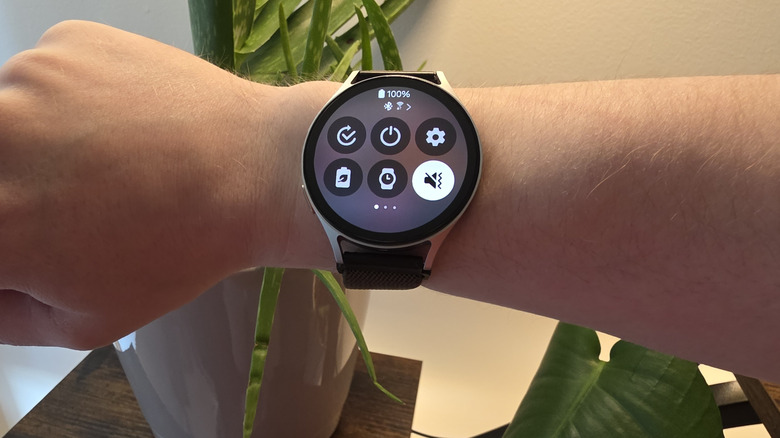
To enable wireless debugging, swipe down from the top of your watch and tap the gear icon to enter settings. Scroll down and select About Watch, then tap Software Information. Find the box labeled Software Version and tap on it repeatedly until prompted to enter the PIN for your watch. Enter the PIN, and Developer Options will be enabled. Back out to the main Settings menu and scroll to the bottom to find Developer Options. Tap on it, then tap Wireless Debugging. Toggle it on, then go back to Watch Face Studio and click Run on Device in the top right. Click on the plus symbol in the resulting Connected Devices popup, then enter the IP address shown on the watch, along with the port number (the five digits after the colon in the IP). On the watch, tap Pair New Device, then enter the pairing code and port number shown on screen into the remaining fields on your computer. Press OK, then click on the name of the watch in the Connected Devices list. After a few seconds, your Galaxy Watch will now display your custom face.