Save your best ports for your most demanding devices.
Max Miller for Engadget
Setting up your computer can be a complicated process, but one thing you'd assume to be simple is plugging in your USB accessories and peripherals such as a keyboard and mouse. Unfortunately, even that seemingly simple act requires a bit of technical knowledge without which you'll end up hamstringing yourself in the long run.
If you're unfamiliar with the intricacies of various USB standards, it can be difficult to know which ports are best suited to a mouse or keyboard. Your computer may have anywhere between a single USB port and over a dozen of them. But they're not all created equal. One may be a high-powered USB 3.2 Gen 2x2 or USB4 port capable of blazing fast speeds, while another might be a low-powered USB 2.0 port.
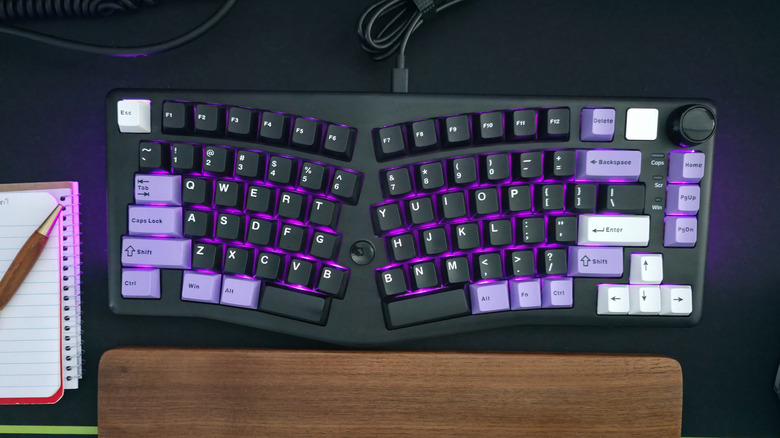
Your keyboard and mouse are most likely to be your least demanding accessories, requiring very little bandwidth. While any port will power your input peripherals and allow them headroom to perform at their best, choosing the wrong ports will leave you with worse options for other, more demanding accessories such as portable SSDs and storage drives, external monitors and USB hubs. To leave those ports free, your keyboard and mouse should be plugged into any open USB 2.0 ports. Here's why.
Save your high-speed USB ports for SSDs and bandwidth-hungry devices
Max Miller for Engadget
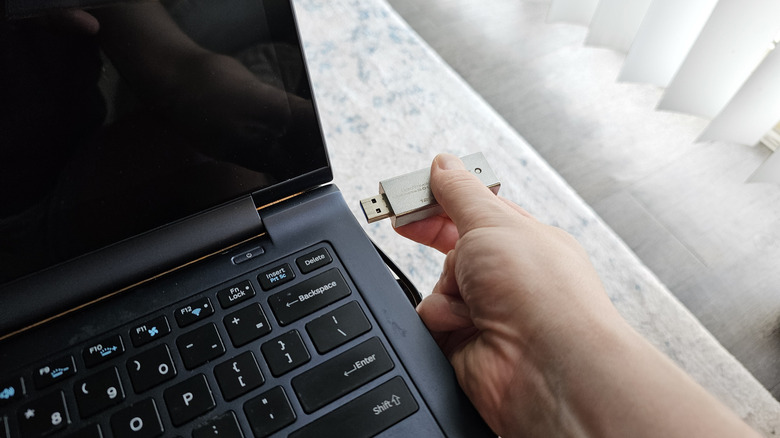
In general, you should connect a mouse or keyboard to your least powerful USB ports. Input peripherals require very little power and data to work properly, so they do not require the high charging speeds and data transfer capabilities of USB 3.x or USB4 ports. Those ports should be saved for flash drives, SSDs, and other storage devices which require a USB port's full capabilities to achieve their best performances.
There are a few caveats to that rule of thumb, though. First, if you're connecting your mouse and keyboard through one of the best USB-C hubs or docks, and also plan on connecting storage devices or other high bandwidth gadgets to the hub, you should choose a high-speed USB port that is suited to those devices. If the USB hub itself has multiple port types, connect the mouse and keyboard to the lowest-speed ports among them.
If your computer has both USB Type-A and Type-C ports, the USB-C ports are likely (though not guaranteed) to deliver higher speeds. Therefore, if your keyboard or mouse uses a USB-C connection, it can be a good idea to connect those devices to your computer with a USB-C to USB-A cable.
Lastly, if your keyboard itself has a built-in USB hub with USB 3.x ports, you should connect the keyboard to a high-powered port on your computer in order to support devices plugged into the keyboard. If you only plan to run a mouse out of the keyboard, you may still be okay using a lower-spec port, so choose whichever arrangement best supports your ideal use case.