A little known remote shortcut could help speed up your Roku device.
AhmadDanialZulhilmi/Shutterstock
Like most smart devices, your Roku TV or streaming device is susceptible to slowing down over time. This can happen for a multitude of reasons, including aging hardware, outdated software and apps or simply a slow internet connection. You can check for new updates by navigating to Settings > System > Software update and selecting the Check Now option. By having the latest Roku update installed, you ensure any known bugs or performance issues have been ironed out. You also stand to gain access to new features.
If performance issues persist, there is one other thing you can try to potentially speed things up — clearing your Roku device's cache. Contrary to popular belief, caching is a process that's actually designed to ramp up performance and efficiency by temporarily storing frequently accessed data so it doesn't have to be downloaded again. This can include thumbnails and other app data that your Roku device may need to load up repeatedly.
However, cached data may pile up over time and even become corrupted. This is where the Clear Cache option on many operating systems and apps comes in handy. Unfortunately, Roku products don't offer a dedicated option for you to do so. You can, however, purge cached data in one of three ways.
Restarting your Roku device does the trick
renata colella/Shutterstock
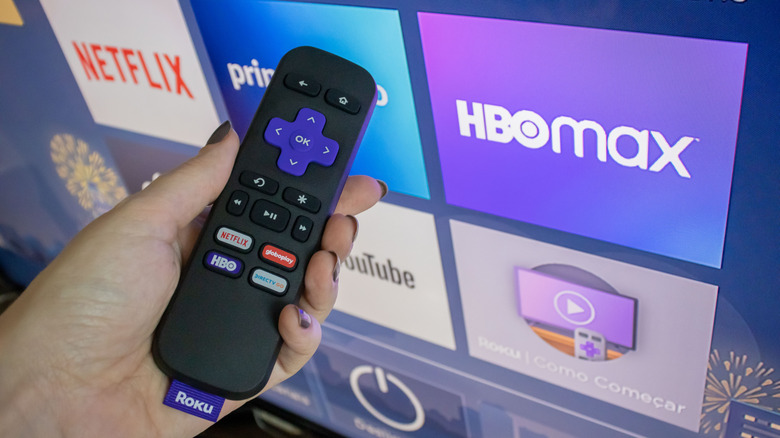
You can clear your Roku TV's cache by pressing a sequence of buttons on the remote control it ships with. Press the Home button five times, the Up button once, the Rewind button twice and finally the Fast Forward button twice. This will trigger a system restart that will clear cached data.
If you can't be bothered to memorize this specific sequence of button presses, you can perform a full restart of your Roku device the traditional way. This is different from simply turning it off and back on, since most modern smart devices enter a low-power state instead of fully switching off. Using your Roku remote, navigate to Settings > System > Power and select System restart. Alternatively, you can perform a power cycle by physically unplugging your Roku TV or streaming device from its power source, waiting around 30 seconds and plugging it back in.
Upon clearing the cache, you may notice apps loading a bit faster and everything feeling generally snappier. You shouldn't need to run this maintenance procedure too often — many people settle on clearing it once every month or when noticeable performance issues start showing up.
It would be ideal if Roku allowed you to clear the cache for specific apps, like other streaming devices running the Android TV platform do, since that wouldn't require you to purge the entire system's cache if only one app was misbehaving.